
Feature guides
Learn more about our features, including new ways to use them. These features guides are a great source of information for 1st time users and veterans!
-
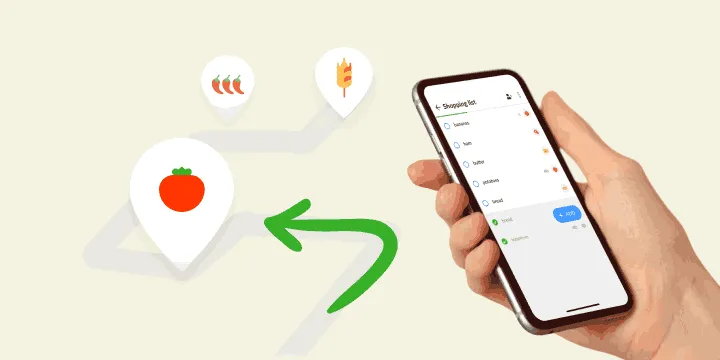
How to Make a Grocery List by Category and Shop Faster
Make a grocery list by sorting items into categories like produce, dairy, and pantry. Follow 5 steps to shop faster, skip backtracking, and forget less.
Updated
-
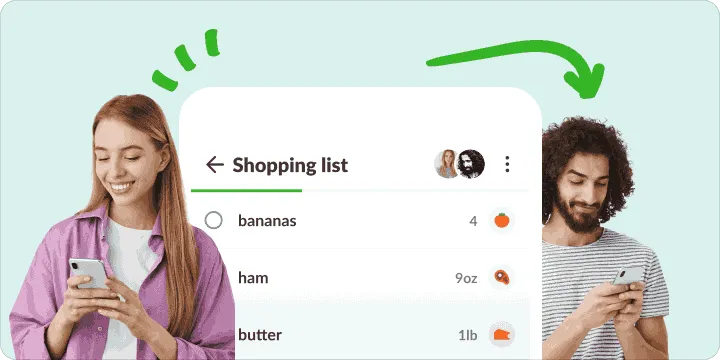
Shared Shopping Lists and Chores: Data-Backed Shopping Insights & Tips
Want to avoid impulse buys and forgotten items? Discover how shared shopping lists help you save time, money, and effort while strengthening relationships.
Updated
-

How Product Suggestions Speed Up Your Grocery Planning & Shopping
Make grocery shopping faster and easier! Learn how product suggestions enhance your shopping experience and streamline meal planning.
Updated
-
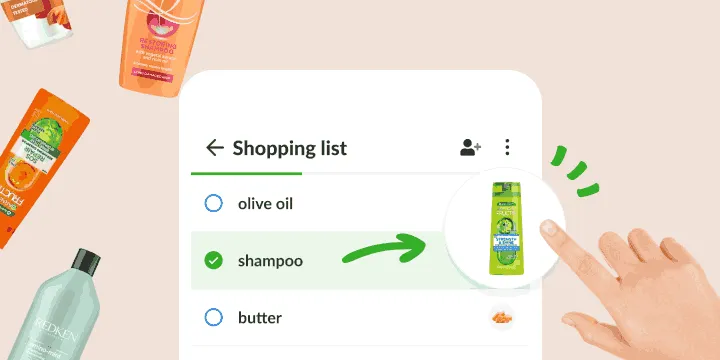
Shopping with a Visual Shopping List: Data-Backed Shopping Insights & Tips
Shop smarter with a visual shopping list with pictures! Images help you buy the right products, avoid confusion, and speed up grocery shopping. Find out how!
Updated
-
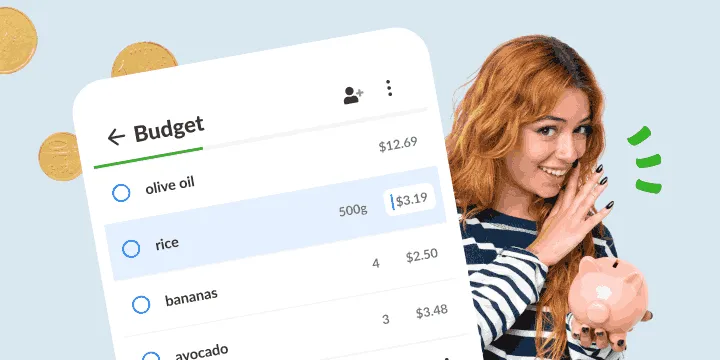
How Grocery Shopping List with Prices Saves You Money (Backed by Data!)
Want to cut grocery costs? Discover how price tracking on your shopping list helps you stick to a budget, avoid surprises, and shop smarter.
Updated
-
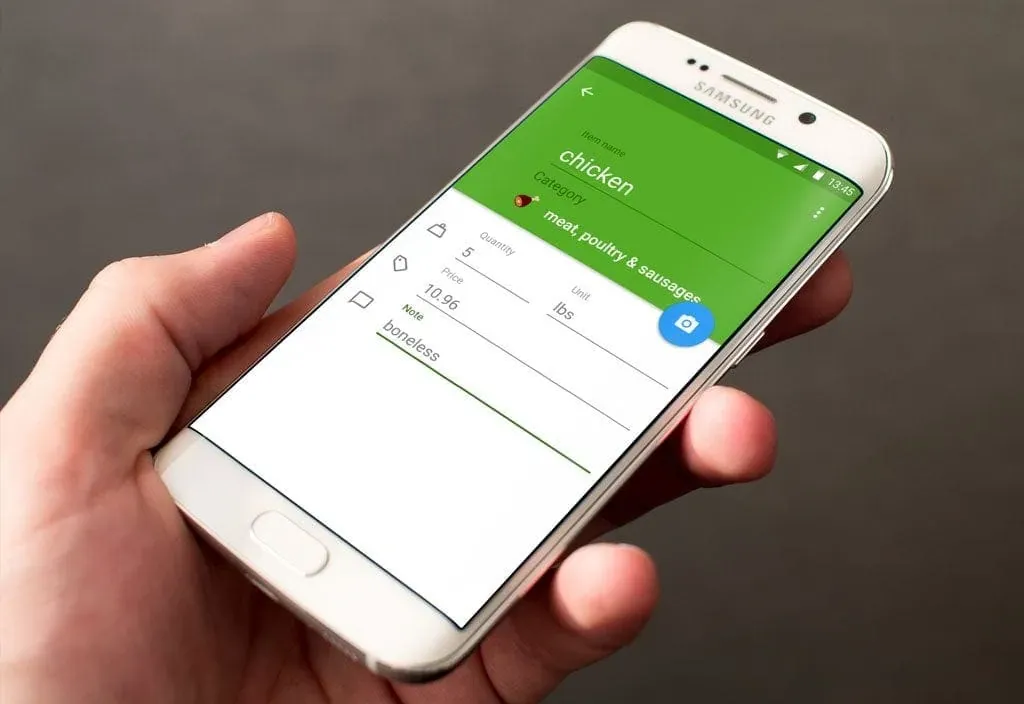
Add Details To Your Shopping List Items Like a Pro
Find out what extra details you can add to items in your Listonic shopping list to make your shopping more accurate and time-saving.
Updated
Frequently asked questions
How do I make a grocery list on my phone?
Install the free Listonic app on Android or iPhone, or open the web app, and create a list. Commonly added products are offered as soon as it opens, so most items take a single tap, and anything you type is sorted into its store category as you add it.
How do I organize a grocery list?
Group it by store section. Listonic puts every item into a category as you add it, so the list arranges itself, and you can reorder the categories to follow the aisles of your store or create custom categories with a name and icon of your own.
How do I share a grocery list with my family?
Open the list in Listonic, tap the sharing icon at the top, and send a link or an email invitation. A link works without a Listonic account, everyone on the list can add and check off items, and the others get a notification whenever something changes.
Does a shared grocery list work between iPhone and Android?
Yes. A Listonic list shared between an iPhone and an Android phone stays in sync both ways, and the same list shows up on tablets and in the web app. Sharing is free, with no limit on how many people can use one list.
How can a grocery list help me save money?
Add prices to your items and Listonic keeps a running total of the trip, multiplied by the quantities, so you can check the list against your budget before you leave. Prices are remembered for next time, and everyone on a shared list sees the same total.
Can I add photos and notes to items on my list?
Yes. Any item can hold a price, a quantity, a unit, a note, and a photo you attach. The photo settles the brand, size, and packaging, so whoever does the shopping comes back with exactly the product you meant.